Respondus Lockdown Browser Support for Faculty
Guidance and support for faculty using Respondus Lockdown Browser with Canvas Quizzes at Seattle University.
Respondus LockDown Browser
The Respondus LockDown Browser is a custom web browser that helps maintain the integrity of online quizzes and exams in Canvas for proctored, in-person exams using Canvas quizzes. When a quiz requires LockDown Browser, students must use it to access the assessment. While running, LockDown Browser restricts actions such as opening other applications, visiting other websites, copying and pasting, taking screenshots, or printing, helping create a more secure testing environment.
Overview
Preparing a Canvas Exam using LockDown Browser
The LockDown Browser menu is hidden by default in the course navigation. To unhide the menu, go to Course Settings and click the Navigation tab. Follow the instructions below to use the LockDown browser with a Canvas quiz.
Additional Resources
- Register for a free training webinar on LockDown Browser and Respondus Monitor.
- Review the instructor guides for getting started with LockDown Browser.
- Provide your students with links to the Student Quick Start Guide.
Spotlight or Pin Guest Speakers or Multiple Presenters
Spotlighting Participants' Videos
As the meeting host or co-host, you may want to highlight the video(s) of a guest speaker or multiple presenters in order to focus your Zoom meeting participants' attention.
In this instance, you can use Zoom's spotlight feature to shine a spotlight on up to 9 meeting attendees. Adding a spotlight to one or more participants puts them as the primary active speakers for all participants, and your meeting participants will only see these speakers, even if they were viewing Gallery mode.
To add a spotlight to a meeting attendee, you must be either a host or co-host. Hover over a participant's video feed and click the three dots [...] and then select Spotlight for Everyone (for the first spotlight) or Add Spotlight (for subsequent spotlights). As the meeting host, you can add and remove the spotlight on yourself, or other guest speakers or student presentation groups. To remove the spotlight, click Remove Spotlight on the upper left corner of the video and everyone will return to active speaker view.
Pinning Participants' Videos
If you just want to focus your own view during your Zoom meeting, you can use Zoom's pinning feature.
If you are the host or co-host, you can pin up to 9 meeting participants. This disables the active speaker view, and the host will only view up to 9 specific speakers (but the host pinning speakers does not affect the view of other meeting participants). You can add and remove pins at any time.
If you are not the host or co-host, you can pin one other meeting participant (though the meeting host can give you permission to multi-pin). And if you are recording the meeting locally, your recording will be of the pinned speaker. Pinning another participant's video only affects your view and local recordings. It does not affect the view of other participants or cloud recordings.
One example of when this might be especially useful is if one of the meeting participants needs a sign language interpreter. Then that participant can pin the interpreter's video and that way they can always see the interpreter on their screen, regardless of who is actually speaking during the meeting.
To pin another participants' video, hover over a participant's video feed and click the three dots [...] and then select Pin. To remove the pin, click Remove Pin on the upper left corner of the video and you will return to Active Speaker view.
Use Your Phone or Tablet as a Document Camera
You can use your mobile phone or tablet's built-in camera as a document camera when you share your screen over Zoom.
iPhone or iPad
If you have an iPhone or iPad, you can easily share your iPhone or iPad screen when you click Share Screen and then select iPhone/iPad.
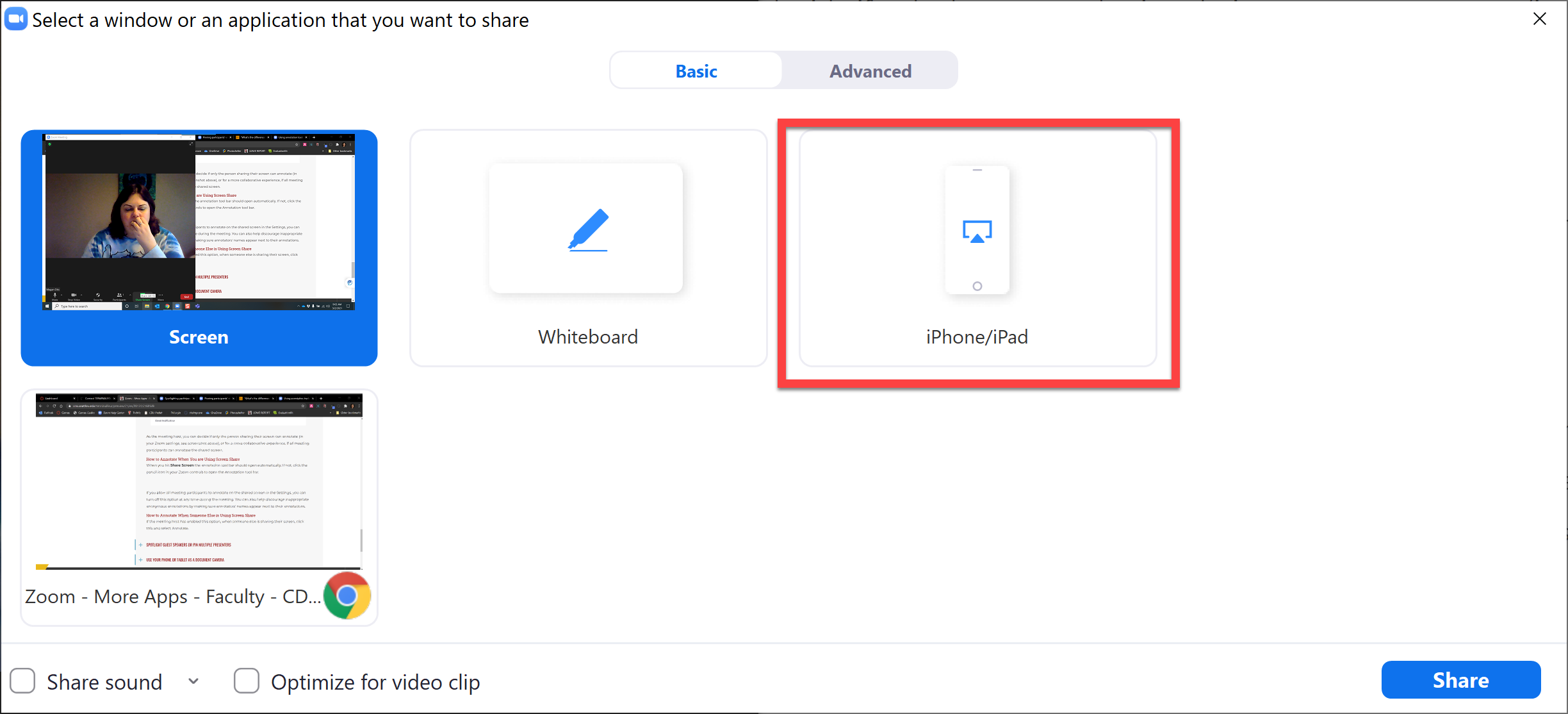
You will first need to make sure your iPhone or iPad is using the same network connection as your primary device (such as making sure your iPad is connected to the same WiFi network as your laptop).
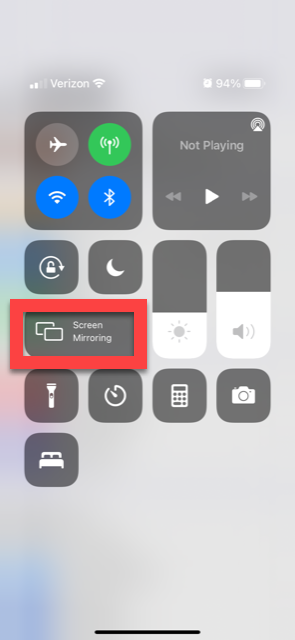
Then on your iPhone or iPad, you'll need to enable Screen Mirroring (by swiping down with two fingers from the top right hand of your screen).
Then select the device you want to share your iPhone or iPad screen with (your primary device).
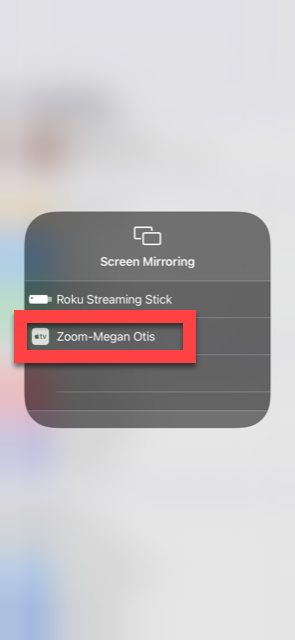
Then your iPhone or iPad screen will be shared to all your meeting participants. To use your iOS device as a document camera, get a tripod or prop your device up on a stack of books with the camera pointing down to the table top.
Android or Other Device
- Download the Zoom app to your Android or tablet.
- Since you cannot use your Seattle U-provided Zoom Pro account on multiple devices simultaneously, create a free Zoom account using a personal email address.
- Use a tripod or prop your Android or tablet up on a stack of books so that you can point your camera down onto your table top.
- Join your Zoom meeting both from your regular computer (so your students can see your face with your webcam) as well as with your Android or tablet (pro-tip to avoid getting audio feedback: do not join with computer audio on your second device).
- Then on your Android phone or other device, select "Share Screen" and open your device's camera app. This will share your device's camera feed with your Zoom meeting participants.